How to turn a photo into pixel art
July 16, 2026 · updated July 26, 2026
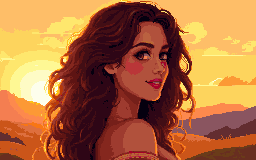
Turning a photo into pixel art used to mean two bad options: a Photoshop "mosaic" filter that just makes your photo blocky and muddy, or commissioning a pixel artist to redraw it by hand. There's a third way now — an AI model trained specifically on pixel art can redraw your photo in genuine pixel style, with real palettes, clean edges and deliberate detail, the way an artist would.
Here's the whole process with minia.art, start to finish.
Step 1: Upload your photo
Open the generator, and add your photo as a reference image. Any format your browser understands works — a phone selfie, a pet photo, a landscape. Clear subjects convert best: a face, a person, an animal, a building. Busy group shots with ten small faces lose too much detail at pixel resolutions.
Step 2: Dial in the strength
The strength slider decides how much of your photo survives the conversion:
- Low strength keeps the composition and likeness — same pose, same framing, recognizably you, but rebuilt from pixels. This is the setting for avatars and portraits.
- High strength treats the photo as loose inspiration — the model keeps the subject but takes creative liberties with the composition, the background and the details. Better for turning a landscape photo into something that looks like a game scene.
There's no universally right value; two or three attempts around the middle usually finds the sweet spot. Generations are fast, so experiment.
Here's the middle of that range — the same photo at the default strength, close enough to keep the pose and the tulip, loose enough to be genuinely redrawn rather than filtered. Drag to compare:
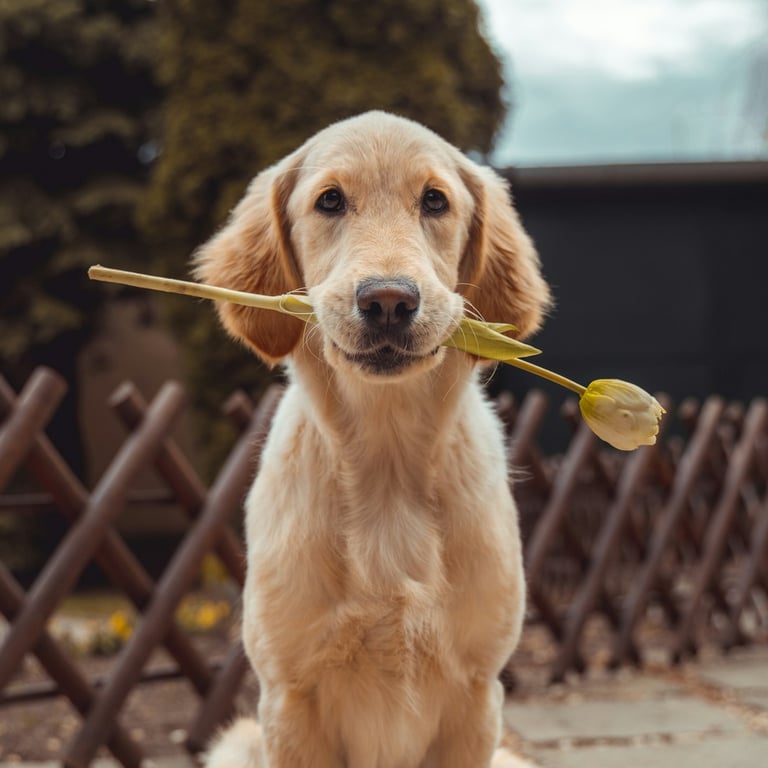
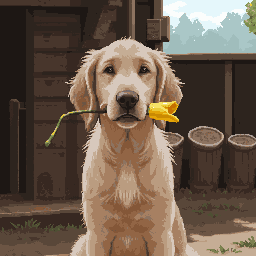
Original photo by Richard Brutyo on Unsplash.
Step 3: Pick a style
The photo doesn't have to become a portrait — the eighteen styles all accept a reference image. A face works beautifully through the portrait-leaning styles, but try a house photo through the isometric style or a street scene through top-down and you get game-asset versions of real places. Retro and watercolor styles give the same photo completely different moods.
Step 4 (optional): Steer the colors with a palette
If the result should match an existing project — your game's palette, your stream's brand colors — upload a palette image alongside the photo. The conversion then re-colors the output using only those tones. This is the difference between "a pixel version of my photo" and "a pixel version of my photo that drops straight into my game."
Step 5: Download
Download as PNG, optionally with a transparent background and upscaled up to 8× if you need it large — the upscaling preserves hard pixel edges instead of smoothing them away.
A transparent background is what you want if the result is going to be a profile picture. If that's the plan, how to make a Discord avatar covers the sizing rules that matter at avatar size — square aspect, centered subject, and the circle crop that eats the corners.
Why this beats a pixelation filter
A mosaic filter averages your photo into squares — every square is a blurry compromise, edges land wherever the grid falls, and the result reads as "degraded photo," not pixel art. A pixel-art model redraws the image: it chooses a palette, places clean edges deliberately, simplifies shapes the way human pixel artists do, and produces something that would look at home in a game. The difference is obvious side by side — one looks broken, the other looks made.
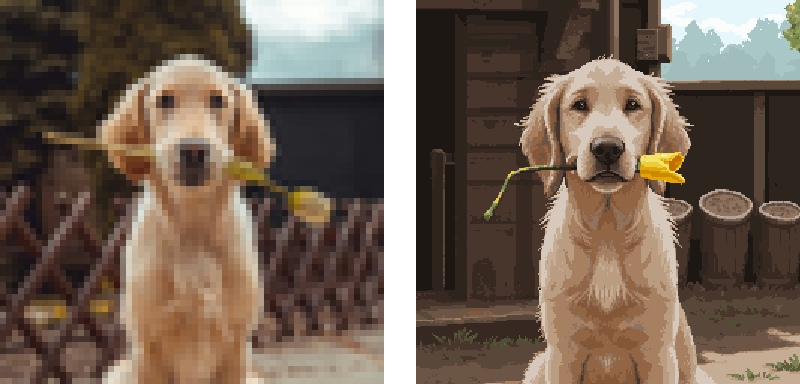
Left: the photo averaged down to a 64-pixel grid, which is all a mosaic filter does. Right: the same photo through the model. The filter has no palette and no edges — coarsen it further and it's mush, leave it finer and it's just the photo again. It has no setting that produces pixel art.
That said, a mosaic filter is exactly the right tool for a different job: hiding something rather than making art — a face, an address, an API key in a screenshot you're about to post. If that's what you're here for, use the free pixelate tool instead. It runs entirely in your browser, so the image is never uploaded anywhere.
Try it
The free plan includes 10 generations a month with no credit card — enough to convert a few photos and find your favorite settings. If you'd rather see the range before you start, the examples page shows what the styles actually produce.